
I started using Jitter mainly for creating animations for mobile apps. Things like splash screens, onboarding animations, logo reveals, and lightweight UI motion graphics for Flutter apps.
The biggest reason I started liking Jitter so much was because it lets you export animations as JSON Lottie files instead of heavy video formats. If you work with Flutter development, you probably already know how useful Lottie JSON animations are.
That was exactly what I needed.
So after spending almost two hours creating a clean onboarding animation for one of my mobile app projects, I finally exported the animation as a JSON file.
And that’s when my entire mood got ruined.
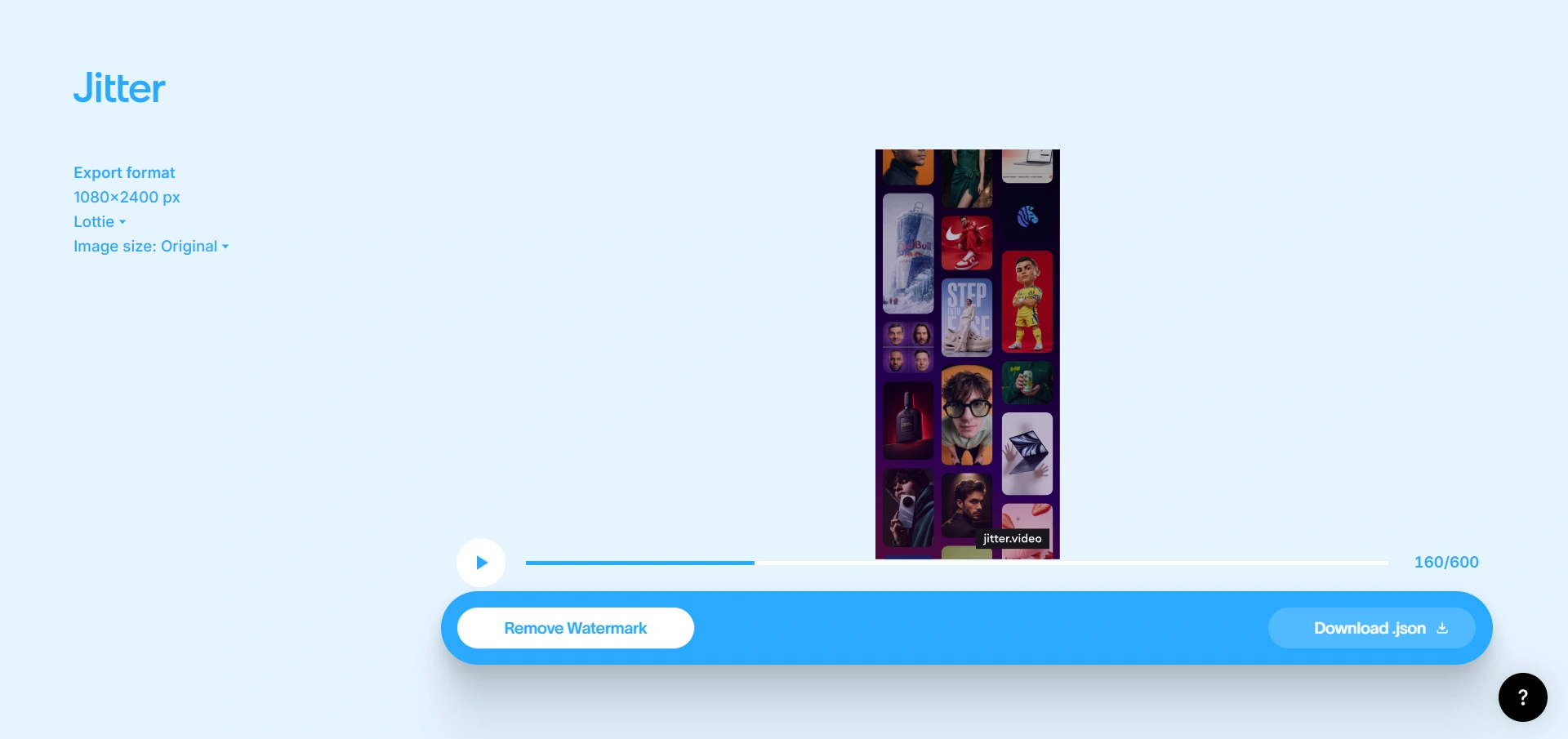
The exported animation came with the “Jitter.video” watermark.
Honestly, I got frustrated immediately because the animation itself looked perfect. I had already spent so much time adjusting easing, motion timing, scaling, and transitions, but now the final export suddenly felt unusable for a professional app project.
That’s when I started searching for how to remove the Jitter.video watermark properly.
Why Removing the Jitter.video Watermark Was So Difficult
At first, I assumed there would already be a simple online solution for this. I searched everything I could think of, including terms like “remove Jitter watermark,” “Jitter JSON watermark remover,” and “remove watermark from Lottie animation.”
But surprisingly, I couldn’t find a proper solution anywhere.
Most watermark remover tools were designed for videos and images, not JSON animations exported from Jitter. The few alternatives I found required Python scripts, manual file editing, and a complicated local setup.
I wanted something much simpler: upload the JSON file, remove the watermark, and download the clean animation.
That’s Why I Built Jitter.video Watermark Remover Online
Since I couldn’t find a proper online solution anywhere, I eventually decided to build one myself.
I wasn’t trying to build another generic watermark remover. I wanted something built specifically for Jitter JSON exports because that’s where the actual problem existed. Most tools were focused on videos and images, while the people using Jitter for Flutter apps, websites, and Lottie animations were left without a simple solution.
The goal was straightforward from the beginning. I wanted removing the Jitter.video watermark to feel effortless. No coding knowledge, no software installation, no Python scripts, and no complicated setup process. I wanted a workflow where anyone could upload a JSON animation, remove the watermark, and download a clean file within seconds.
That’s how the Jitter.video Watermark Remover Online tool was created.
How to Remove Watermark from Jitter Animations
Once I built the tool, the entire process became much simpler than I originally expected.
Step 1: Export Your Animation from Jitter
After finishing your animation inside Jitter, export it as a JSON Lottie file instead of MP4. This is important because the tool is specifically designed to work with Jitter-exported JSON animations.
Step 2: Upload the JSON File
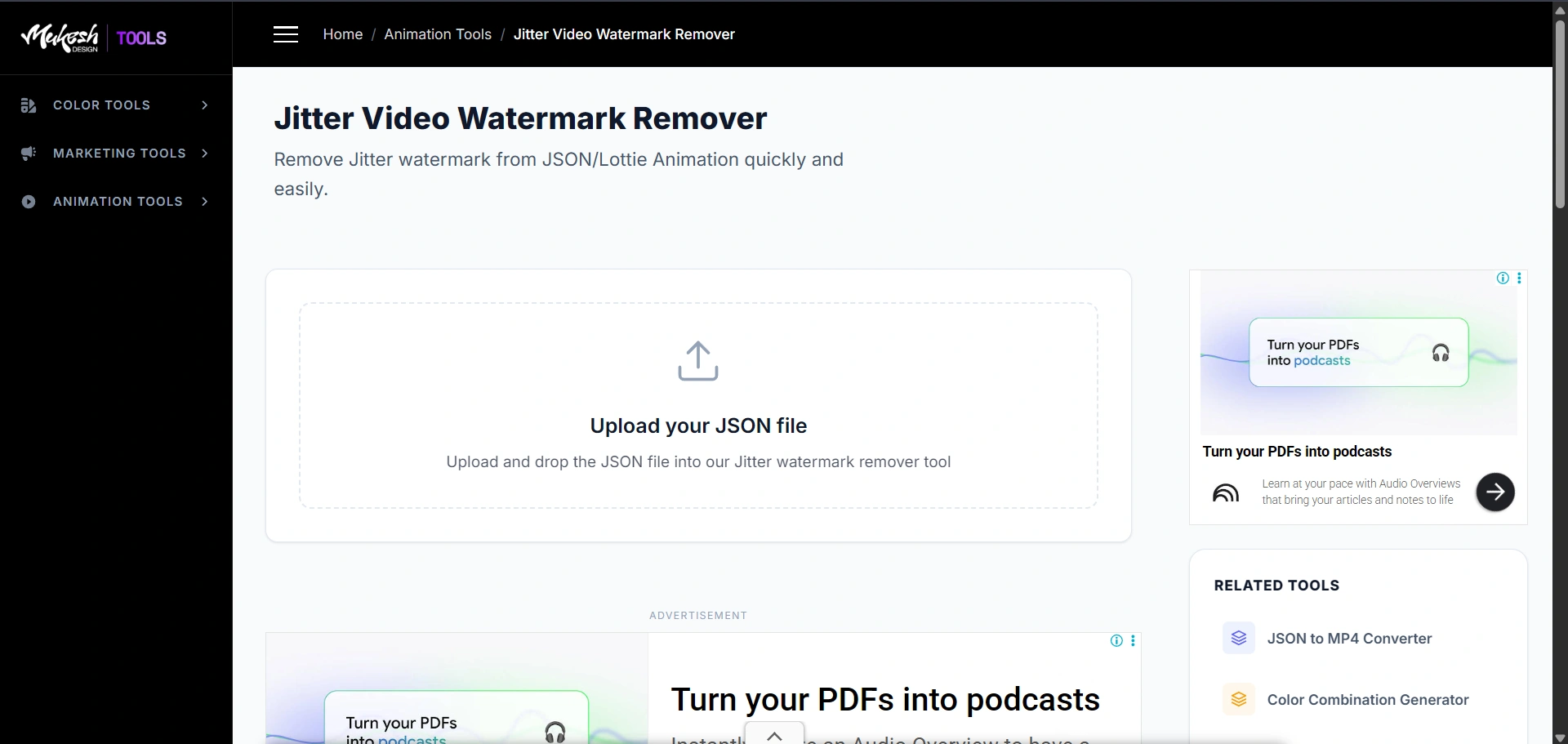
Next, open the Jitter.video Watermark Remover Online tool and upload your exported JSON file.
The tool automatically analyzes the animation structure and detects the watermark layer added by Jitter’s free export version.
Step 3: Remove the Watermark Automatically
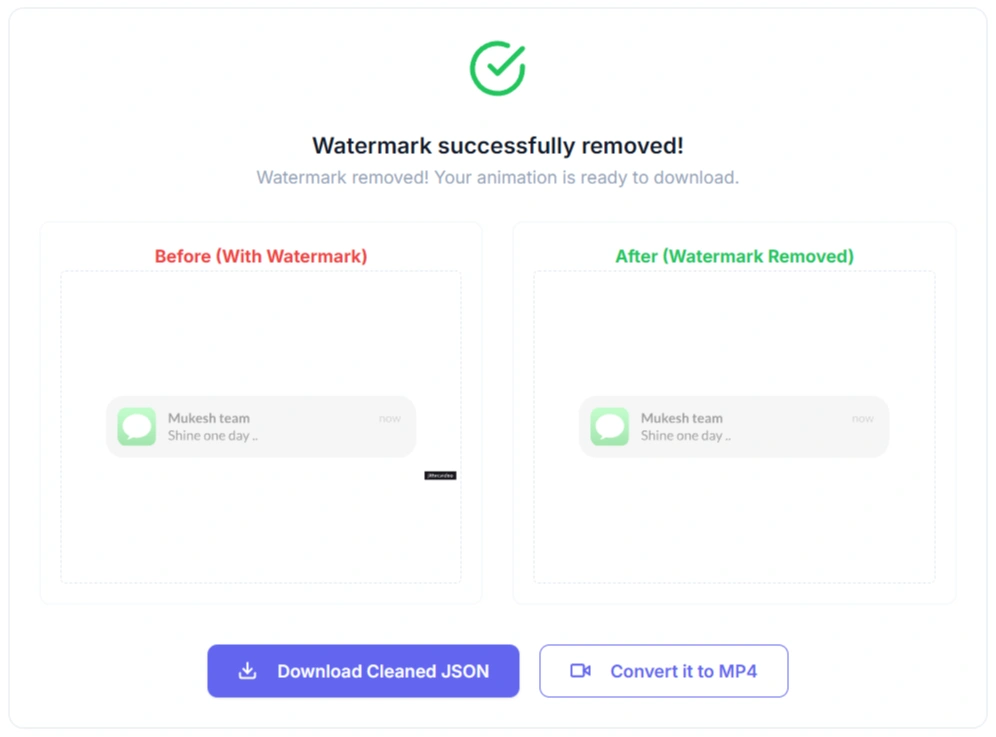
As soon as the file is uploaded, the tool processes the animation and removes the watermark automatically.
There’s no need to edit the JSON manually, install Python scripts, use terminal commands, or modify animation layers yourself. The entire process happens within seconds.
Step 4: Download the Clean JSON Animation
Once the watermark has been removed, simply click the Download Cleaned JSON button.
The cleaned file can then be used directly inside Flutter apps, websites, onboarding screens, splash animations, logo reveals, or any project that supports Lottie animations.
One thing I specifically focused on while building this tool was preserving the original animation quality. Since the watermark is removed from the JSON structure itself, the animation remains smooth, lightweight, and visually identical to the original export.
Step 5: Convert the Animation to MP4 (Optional)
Sometimes you may not need the JSON file at all. Maybe you want to upload the animation to Instagram, Dribbble, Behance, YouTube Shorts, or share it with a client as a video.
For that, you can simply click the Convert it to MP4 button right below the cleaned animation.
There’s no need to upload the file again or repeat the process. Just one click converts the cleaned JSON animation into an MP4 video that you can download immediately.
This has honestly become one of my favorite parts of the workflow because many times I create an animation for Flutter, remove the watermark, and then also export an MP4 version for presentations, portfolio projects, social media posts, or client previews.
That’s it.
I wanted the final export to look exactly the way it was originally designed.
Another thing that bothered me while testing random online watermark removers was privacy. A lot of designers and developers work with unreleased app concepts, startup products, internal UI systems, and confidential client projects. Uploading those files to random unknown servers never felt comfortable to me.
Everything I tested either reduced quality, required coding knowledge, or simply didn’t support JSON animation files properly.
Final Thoughts
When I first ran into the Jitter.video watermark, I genuinely thought there would already be an easy solution available online. But after spending hours searching, I realized there wasn’t a simple tool built specifically for Jitter JSON animations.
That’s ultimately why I built Jitter.video Watermark Remover Online. It solved the exact problem I was facing: removing the watermark without installing software, learning Python, or damaging the animation quality.
Today, it’s part of my regular workflow whenever I create Lottie animations for Flutter apps, onboarding screens, splash animations, or client projects. If you’re facing the same issue, hopefully this tool saves you the time and frustration that I went through.
Frequently Asked Question About Jitter Watermark Remover Tool
If you’ve exported your animation from Jitter as a JSON file, you can upload it to the Jitter.video Watermark Remover Online tool. The tool automatically removes the watermark and lets you download a clean version of the animation within seconds.
The best method depends on the animation format. For Jitter JSON animations, using a dedicated watermark remover is usually better than cropping or blurring because it preserves the original animation quality.
You can export your animation as a JSON file, remove the watermark using the Jitter.video Watermark Remover Online tool, and then download the cleaned animation. If needed, you can also convert it to MP4 afterward.
Many watermark removers require subscriptions or software installations. With the Jitter.video Watermark Remover Online tool, you can remove watermarks from supported Jitter JSON animations directly in your browser for free.
Jitter is a browser-based animation tool used to create motion graphics, UI animations, social media content, and Lottie animations. It has become popular among designers and developers because it can export lightweight JSON animation files that work well in apps and websit